This transition is called Molten: 11 frames of melted film on black. On a reel it can look like the film burning through the cut, or like a cheap template. The difference is four rules. Here they are, with a real picture of each, and one prompt that teaches all four to your editing agent (step 06).
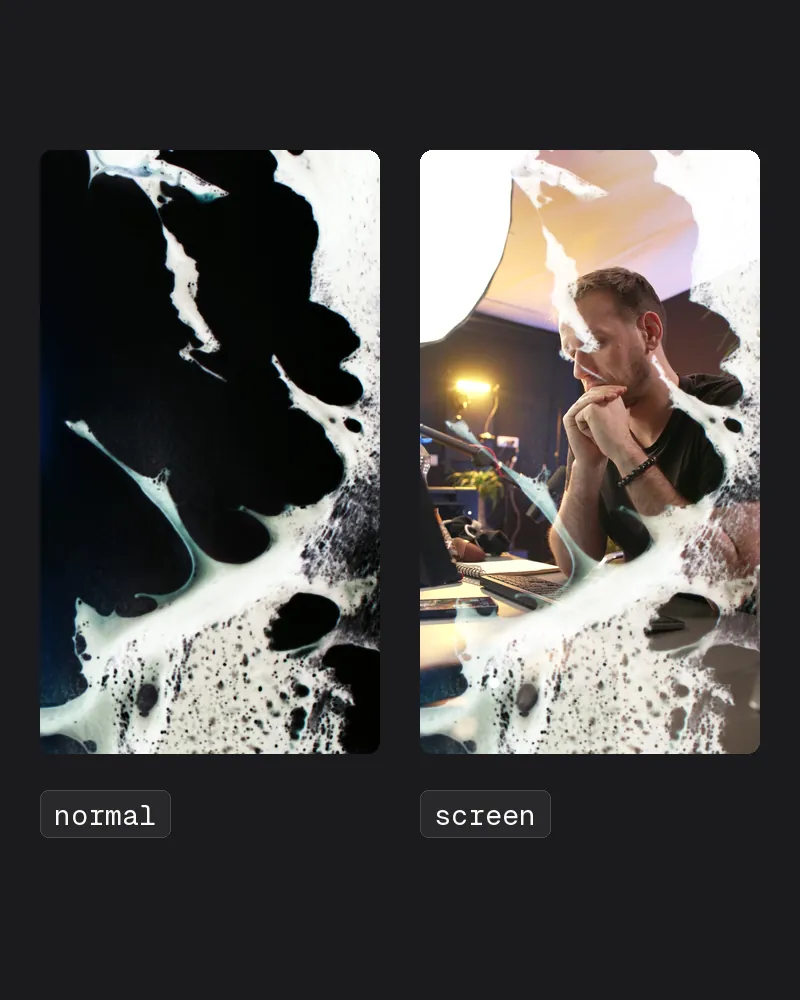
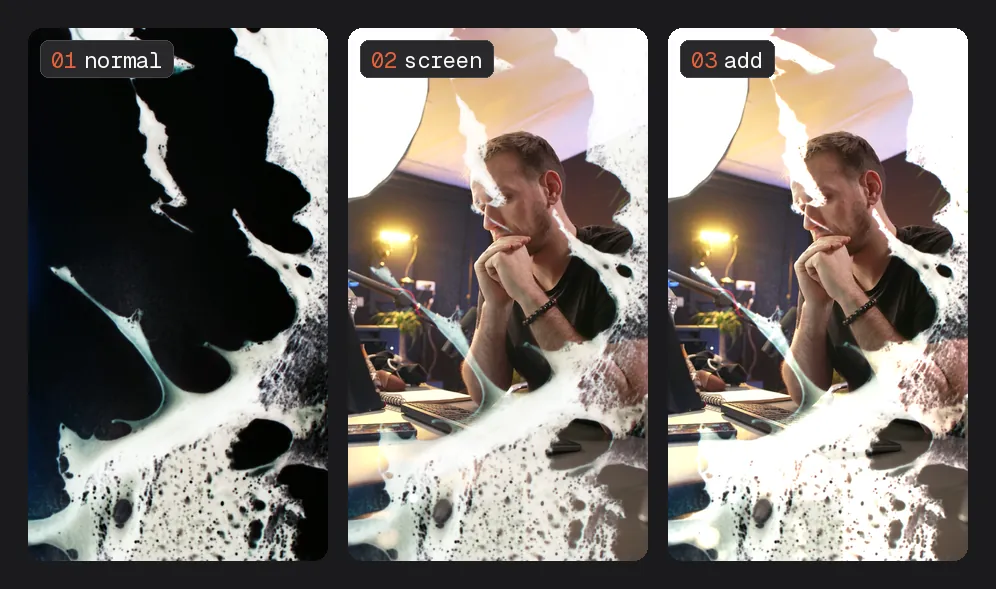
- You drop a transition on and a black box covers your video.
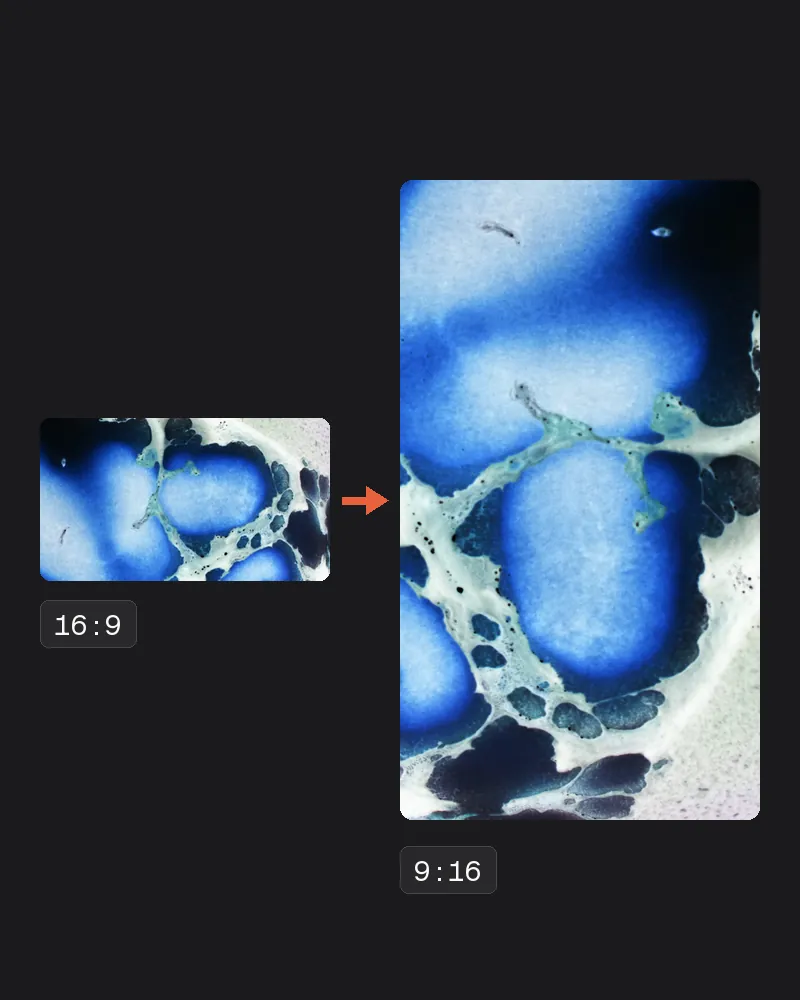
- It was made for 16:9, so on a reel it sits in a band across the middle.
- You use it on every cut and the reel starts to look like a template.
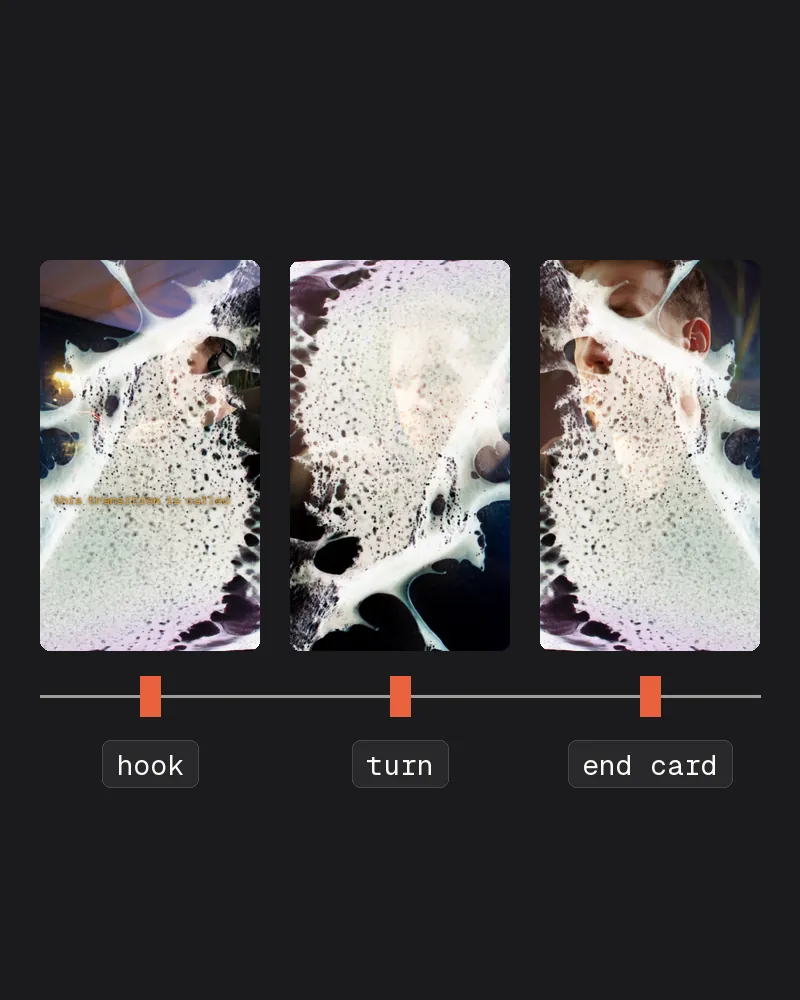
Three flashes at most, on the cuts that matter.
What you need
One clip and an editor that can blend. The agent is optional: every rule below works by hand too.
- A melt or film-burn clipA short transition of melted or burning film on black. Molten is the one in my reel. Any film burn on black works the same way.
- An editor with blend modesPremiere Pro, DaVinci Resolve, After Effects, Final Cut Pro, or a HyperFrames page if Claude edits for you.
- Your agent, if it edits for youClaude Code, or any agent that drives your editor. Step 06 teaches it all four rules in one prompt.
 01a clip on black
 02your take
 03screen blended
Know your clip
Molten is 11 frames at 24 fps, under half a second, in 3840 x 2160: melted film, shot on black. It comes in two bursts. The first, frames 1 to 7, comes in from the edge, peaks on frame 4 and leaves to black. The second, frames 8 to 11, comes back and stops on its last frame with the melt still over most of the picture: it never leaves. So the flash in my reel is the first burst alone, 7 frames. The black is the part you never see. Step 03 is how.
 01
01 02same as 1
 03
03 04brightest
 05
05 06
06 07nearly black
 08
08 09
09 10
10 11the last, 79% covered
Molten comes from a paid transition pack, so I can’t share the file. Any melted-film or film-burn transition on black works the same way: the rules are about how you use it, not which one. Before you start, ask your agent what yours is.
Read [transition.mov] and tell me its size, its frame rate and how many frames it has, and whether it is on black or has a transparent background (an alpha channel). Then tell me if it comes in more than one burst, which frames make the first one, and which of them is the brightest.
Turn it on its side
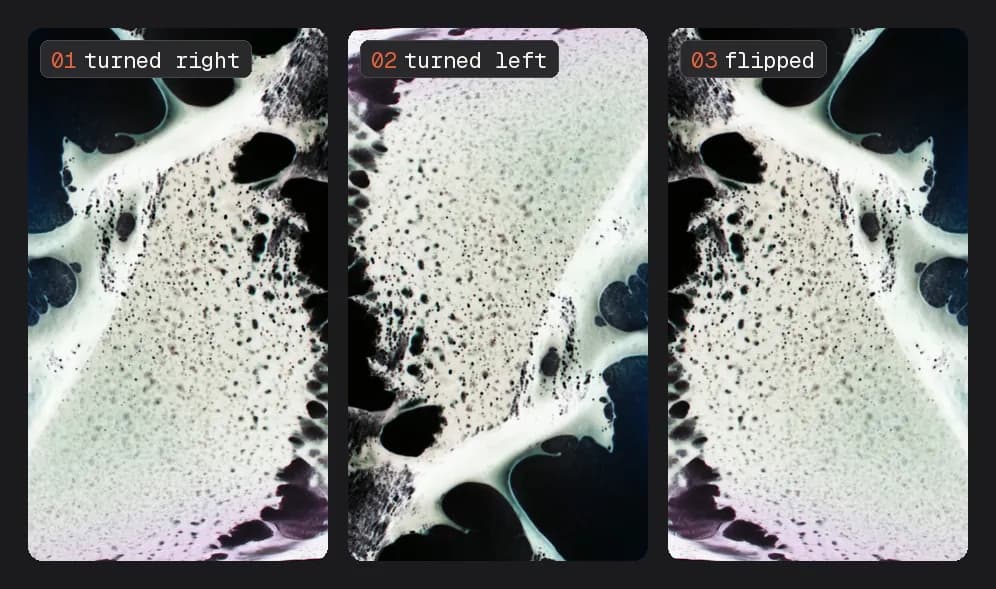
Transition packs are made for 16:9. Laid on a vertical reel as it comes, the clip fills a band across the middle and stops at a hard edge. Turn it 90 degrees and scale it until it fills the frame. A 3840 x 2160 clip turned is 2160 x 3840, the same shape as a 1080 x 1920 reel, so none of the melt is cut off.
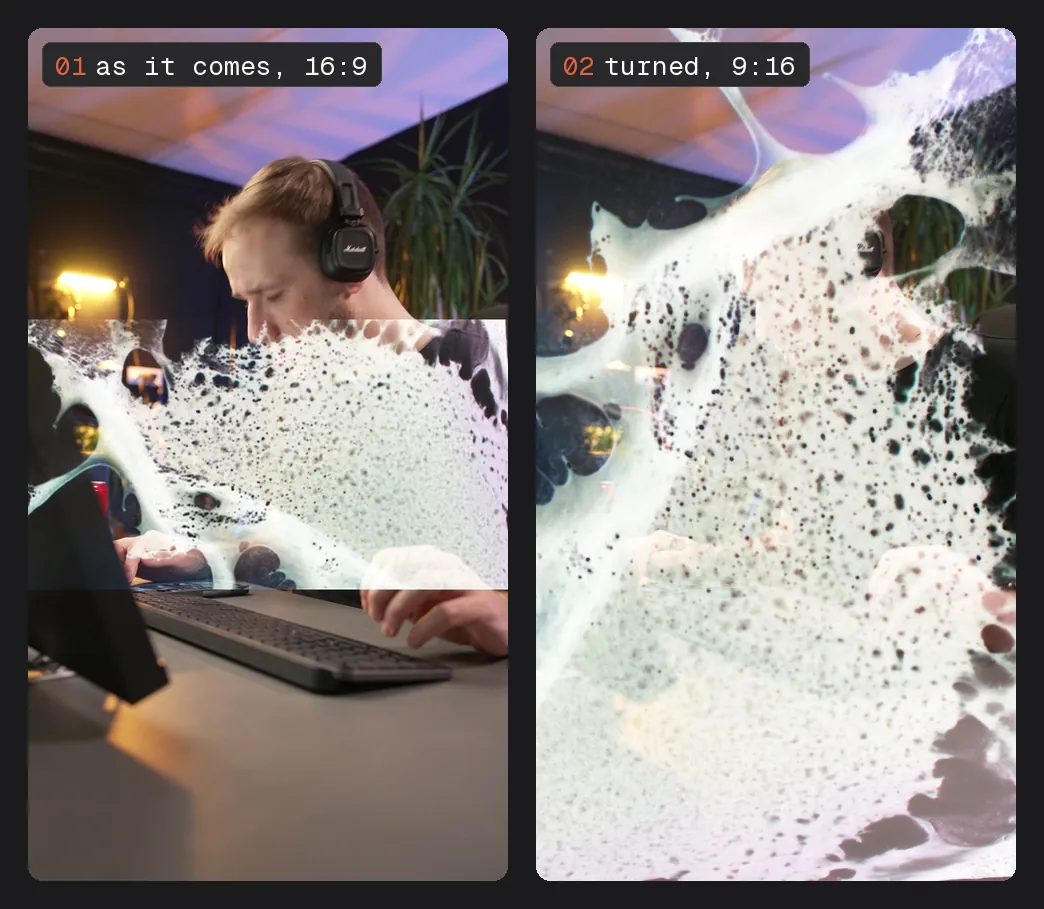
In any editor that is the clip’s Rotation set to 90 (or -90), then its Scale or Zoom until it fills the frame. Each time you use it, turn it the other way or flip it, so no two flashes look the same.
Blend it with Screen
The clip is melt on black. Laid on in Normal mode, the black covers your video. Set its blend mode to Screen and the black drops out: only what is brighter than black glows over your picture. Add works too, and burns a little brighter.
Where the setting is:
- Premiere Pro
Effect Controls > Opacity > Blend Mode > Screen - DaVinci Resolve
Inspector > Video > Composite Mode > Screen - After Effects
the layer’s Mode column > Screen (F4 shows the column) - Final Cut Pro
Video inspector > Compositing > Blend Mode > Screen - HTML, HyperFrames
on the clip’s video: mix-blend-mode: screen
A clip with its own transparent background (an alpha channel) needs no blend. Leave it on Normal. The other three rules still hold.
Put it on the cut
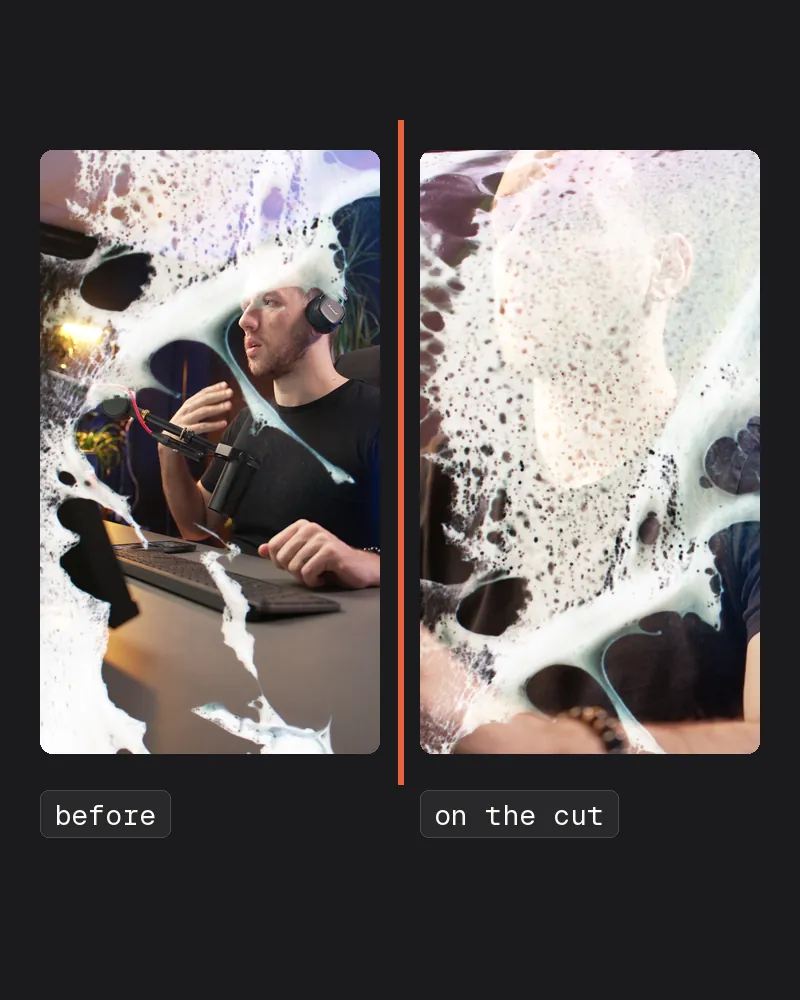
The flash is there to hide the cut, so its brightest frame goes on the cut frame, half the flash before it and half after. In my reel the first burst’s 7 frames play at real speed, 9 frames at 30 fps, with frame 4 of the clip on the cut: 4 frames before, 4 after. Then fade the first and last three frames (30, 60 and 85 percent in, the same out), so it never pops on or off.
 1clip 1 · 30%
 2clip 1 · 60%
 3clip 1 · 85%
 4clip 3
 5clip 4 · on the cut
 6clip 5
 7clip 6 · 85%
 8clip 6 · 60%
 9clip 7 · 30%
Only the first burst goes in. Tell your agent so, in these words:
Use only the first burst of [Molten.mov], its frames 0 to 6: the second burst stops on a frame that still covers most of the picture and never leaves. Put the burst’s brightest frame, frame 3, on the cut frame.
Under it, put a short whoosh or hit, well below your voice.
Three times at most
A transition is loud. On every cut it stops marking a moment and becomes the look of the whole reel. Keep it for the cuts where the reel changes: the hook leaving, the turn in the middle, and into the end card. Never on every cut.
 01the hook · 0.5 s
 02the turn · 16.0 s
 03end card · 31.5 s
 04its rule 4 scene
Teach your agent all four
Paste this into Claude Code, or whichever agent edits for you, before you hand it the edit. It holds the four rules and a check at the end, so the agent tells you where it used the flash and that no word got covered.
You are my video editor. I'm giving you a transition clip: a short flash of melted film on black (Molten.mov, 11 frames at 24 fps, 3840 x 2160). Use it on my vertical reels with these four rules.
1. Turn it on its side. My reels are 1080 x 1920. Rotate the clip 90 degrees and scale it to fill the frame. Each time you use it, turn it the other way or flip it, so no two flashes look the same.
2. Blend it with Screen (or Add). The black must drop out completely, so only the melt glows over my footage. Never lay it on in Normal mode: the black would cover the picture.
3. Put it on the cut. The brightest frame lands on the cut frame, about half the clip before the cut and half after. Fade its first and last two or three frames so it never pops on or off. Under it, a short whoosh or hit, well below my voice.
4. Only where it matters. At most three times in one reel: the hook leaving, the turn in the middle, and into the end card. Never on every cut.
When you are done, list every cut where you used it, with its time, and check the frames on either side of each one: no flash may cover a word on screen while it is being read.
Then hand it the edit.
Here is my cut: [my-reel]. Use the transition on it with the four rules, then show me the list of cuts.
When it is right, save the rules, so the next reel starts there.
Save these four rules as a skill called molten-transition, with the path to the clip, and use it on every reel I give you.
Quick fixes
A black box covers my video
The blend mode is still Normal. Set it to Screen (step 03). If your editor has no Screen, Add or Lighten also drops the black out.
It sits in a band across the middle
The clip is still 16:9. Rotate it 90 degrees and scale it until it fills the frame (step 02).
It pops on or off
Fade its first and last three frames (the reel uses 30, 60 and 85 percent in, the same out). If it still ends with a jump, you are using the second burst: stop after frame 7, where the first burst has left to black.
My video looks washed out under it
Screen only ever brightens, so during the flash that is the look. If it holds too long, trim it to the frames around the cut, or lower its opacity.
It covers my text
Move the flash or the text, so no flash plays while a word on screen is being read. The last line of the prompt in step 06 makes your agent check every cut for this.
My clip has a transparent background
Then it has an alpha channel and needs no blend: leave it on Normal. The other three rules still hold.
Can I get Molten?
It comes from a paid transition pack, so I can't share the file. Any melted-film or film-burn transition on black works the same way: the four rules are about how you use it, not which one. Run the prompt in step 01 on the clip you have.
Go through this edit and list every transition with its time. If there are more than three, tell me which three to keep and take the rest out.
Make three versions of the transition for a 1080 x 1920 reel: turned right, turned left, and flipped. Use a different one each time.
Find the brightest frame of the transition's first burst, and put that frame on the cut frame.
Put a short whoosh under each flash, starting just before the cut, well below my voice.
An independent guide by Luka (@omgluka), made at Engram. Molten is a clip from a paid transition pack and is not shared here; every picture on this page is that clip over my own takes. Premiere Pro and After Effects are trademarks of Adobe, DaVinci Resolve of Blackmagic Design, and Final Cut Pro of Apple. HyperFrames is an open-source project by HeyGen. Claude and Claude Code are made by Anthropic. None are affiliated with this guide.